Getting started
Your family assistant,
one reply at a time.
Connect your inbox, get your Dad OS address, then finish setup over email.
Screenshots use example accounts. Some labels may have changed; use the Gmail and Dad OS addresses shown in your own app.
Step 1
Sign in
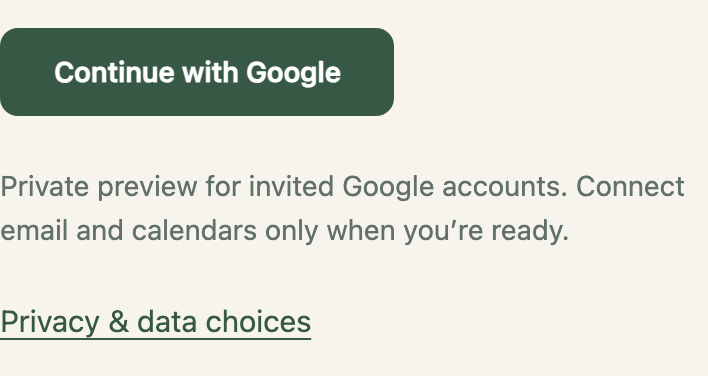
Open Dad OS and choose Continue with Google. Use the Google account you shared with Matt. Read Privacy & data choices before connecting your inbox.
Step 2
Start your email assistant
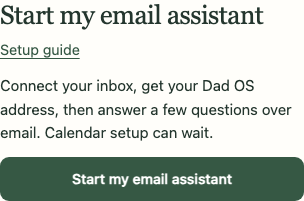
On Today, tap Start my email assistant. Start with one Gmail or Google Workspace inbox. You can connect calendars later.
Step 3
Connect Gmail
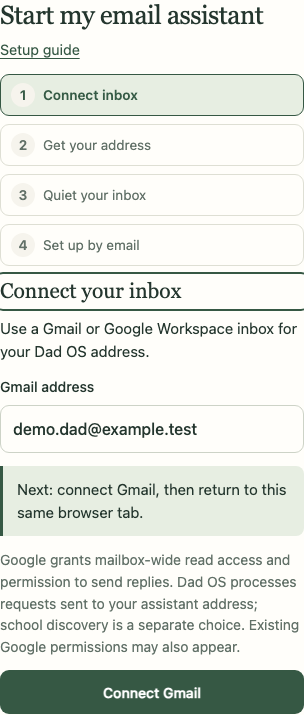
Enter your own Gmail address and tap Connect Gmail. On Google’s screen, check the account and permissions. Dad OS requests mailbox-wide read access and permission to send replies. Keep the same browser tab open until you return.
If Google shows an unverified-app warning, pause and check with Matt before continuing. If a connection expires, start it again from Dad OS.
Step 4
Review replies and AI use
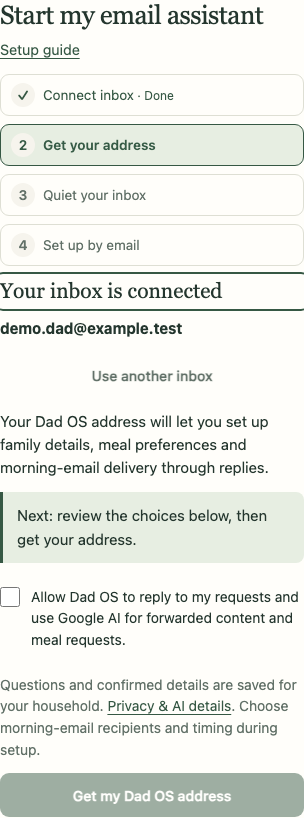
Back in Dad OS, review Privacy & AI details. If you agree, select the checkbox and tap Get my Dad OS address. School-email discovery and calendar permissions are separate choices.
Step 5
Send your first email
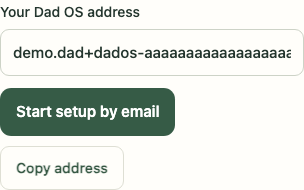
Use the Dad OS address shown in your app; the screenshot is an example. Open Manage email assistant → Keep your inbox quiet for instructions to keep request copies out of your unread inbox. Import and save the rule in Gmail; downloading it alone won’t turn it on. Original emails and Dad OS replies stay visible. Then tap Email Dad OS, replace the message with setup, and send it from the Gmail account you connected. Opening the draft does not send it. You can save the address as Dad OS in your contacts.
Step 6
Reply to set up
Dad OS asks whether to start with family, meals, email schedules, or all. Reply in the same thread, above the quoted message. You’ll get one question at a time.
Example email exchange
You: setup
Dad OS: What would you like to set up first: family, meals, or email schedules? You can also reply all.
You: email schedules
Check before saving
At each section summary, reply save to apply the details, edit to change answers, or skip section to leave that section unchanged. For your morning email, start with your own address and check the time and US time zone.
Where things live in the app
Today has your brief, agenda, and email requests needing attention. School finds senders and assigns children. Meals keeps your conversation and recipes together. Family holds your people. Settings has accounts, morning-email timing, calendar request preferences, and privacy controls.
Need a hand?
Replies may take several minutes. Check spam, then contact matt@barrontech.net if nothing arrives. To pause morning emails or assistant replies, or disconnect an inbox, open Settings. Signing out alone does not stop them.
Continue in Dad OS